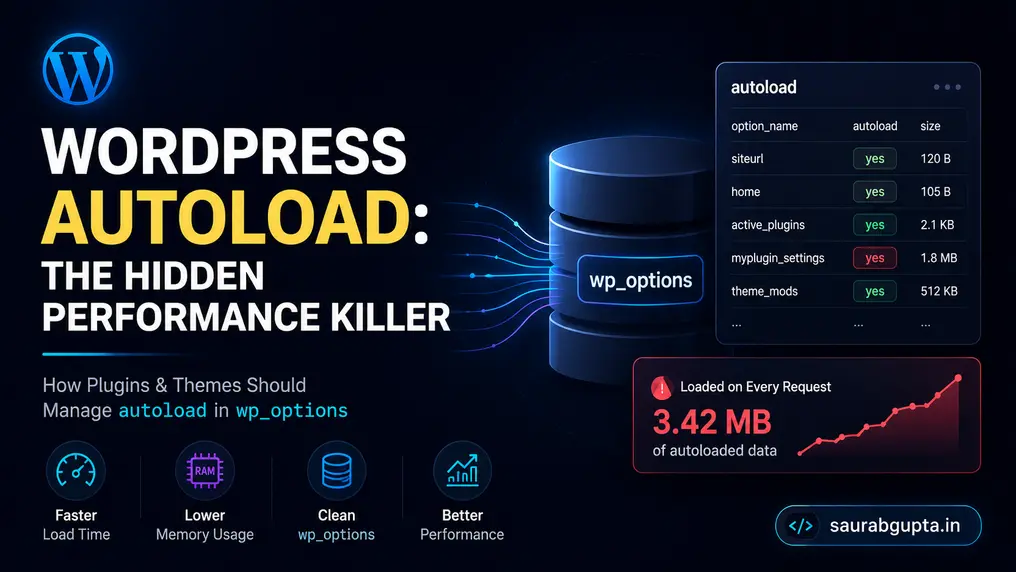
Every time someone visits a WordPress site — or an admin opens the dashboard — WordPress loads thousands of settings from the database. Not because they’re needed on that page, but because the system is designed to load a specific set of options preemptively. This is the autoload column at work, and it’s one of the most misunderstood levers in WordPress autoload wp_options performance tuning.
A typical plugin-heavy WordPress site accumulates hundreds — sometimes thousands — of autoloaded options that sit unused on every page load. Each one consumes memory and adds to the deserialization cost. Collectively, they can add several megabytes of overhead per request. The good news: WordPress 6.6 introduced real tools to fix this, and with the right practices, plugin and theme developers don’t have to contribute to the bloat.
Quick aside: this isn’t the same as PHP’s class autoloading, which is about how class files get located and loaded — not how database options get cached. If you’re tuning that side of the stack too, High-Performance PHP Autoloading with O(1) Classmaps is worth a look.
What Autoload Does in wp_options
When WordPress boots on any request, it runs a query that pulls every option flagged for autoloading and caches the results in a global array called $alloptions. From that point forward, any get_option() call for one of those options is served from the cache — no extra database query needed.
The intent is sound: one combined query beats hundreds of small ones. The problem is that this payload loads whether it’s used on the current request or not.
A Typical Autoload Breakdown
- Base WordPress options: roughly 100 entries (site name, timezone, home URL, permalink structure, etc.)
- 15 active plugins averaging 3 options each: roughly 45 entries
- Theme options: roughly 50 entries
- Leftover data from removed plugins: roughly 500 entries
- Typical total: around 700 autoloaded options
Multiply that by the size of each serialized option — anywhere from 100 bytes to tens of kilobytes — and a site can easily end up with several megabytes of data loaded on every single request, before a single line of page-specific code runs.
Why Site Owners Feel This More Than Frontend Visitors
Frontend pages are often shielded by page caching, a CDN, or service workers, which hides the autoload overhead. But several areas of a site take the full hit on every request:
- The WordPress admin dashboard, which is uncached and rebuilds the autoload payload on every click
- WooCommerce checkout and other dynamic, uncached pages
- Database backups, which grow larger than necessary
- Cache warm-up times, since there’s simply more data to load and cache
A common pattern: the site owner sees a fast, cached frontend but a sluggish admin area. Autoload bloat is frequently the underlying cause.
The Mechanism: How wp_options Actually Works
The Options API is WordPress’s key-value store. Every plugin, theme, and core feature uses it to persist settings between requests.
The Table Structure
| option_id | option_name | option_value | autoload |
|---|---|---|---|
| 1 | siteurl | https://example.com | on |
| 2 | home | https://example.com | on |
| 3 | blogname | My Blog | on |
| 1500 | my_plugin_color | #0073aa | on |
| 1501 | my_plugin_api_key | sk_live_abc123… | off |
| 1502 | my_plugin_cache | [serialized array] | off |
The autoload column determines whether an option is pulled into memory on every request. It is the single most important factor in whether an option contributes to autoload bloat.
Correction: The original draft described the column as strictly binary (yes / no). As of WordPress 6.6+, the column can also hold on, off, auto, auto-on, and auto-off — the legacy yes/no strings still work but are considered deprecated as of WordPress 6.7. Any option whose value is on, auto-on, auto, or the legacy yes is included in the autoload payload.
How get_option() Works
The function actually responsible for filling that cache is wp_load_alloptions(). It’s called the first time get_option() runs on a request — not once per call. Internally it does roughly this:
- Check whether
$alloptionsalready exists for this request (in-memory) or in the persistent object cache under the keyalloptions. - If not present, run a single query —
SELECT option_name, option_value FROM wp_options WHERE autoload IN (...)— covering every “on” variant (on,auto-on,auto, and the legacyyes). - Store the entire result set as
$alloptions, both for the rest of this request and in the persistent cache for future requests.
Every subsequent get_option('blogname') call on that request simply reads from this already-populated $alloptions array — no database hit. If the option isn’t in $alloptions (i.e., it’s not autoloaded), get_option() falls back to a separate, individual query for that one option, which is then cached on its own for the rest of the request.
This is the crux of the performance issue: wp_load_alloptions() doesn’t know which autoloaded options your current request will actually use — it loads all of them, every time, before your code even has a chance to ask for one.
When Autoload Makes Sense
Autoload is the right call when an option is:
- Accessed on almost every page load
- Small in size (a flag, a color, a short string)
- Core to your plugin’s basic functionality
Autoload usually does not make sense for:
- Admin-only settings (API keys, license data, advanced configuration)
- Infrequently accessed data (license checks, update schedules)
- Large serialized arrays (page builder data, logs, sync caches)
- Conditional features that aren’t checked on most page loads
WordPress 6.6+: What Actually Changed
Starting with WordPress 6.6 (released July 2024), core made the autoload system explicit, flexible, and easier to manage at scale.
API Parameters Now Accept Booleans — But the Database Stores New String Values
Correction: The original draft framed this as “strings became booleans.” That’s only half the picture. The Options API functions (add_option(), update_option(), wp_set_option_autoload()) now accept a boolean for the $autoload parameter for convenience:
But internally, WordPress doesn’t store a literal boolean in the autoload column. It normalizes the value to one of: on, off, auto, auto-on, or auto-off. The legacy strings yes and no are still accepted everywhere for backward compatibility, but are deprecated as of WordPress 6.7 and new entries are written using the on/off convention instead.
New Intermediate States: auto-on and auto-off
WordPress also introduced “auto” states that let core make the call based on internal heuristics rather than a hard developer decision:
These states give core room to optimize without forcing every plugin to make an explicit, permanent choice at registration time.
What about plain auto?
The bare auto state is WordPress’s way of saying “I’ll decide.” In practice, core treats it as leaning toward autoloading — similar to auto-on — but reserves the right to override that decision based on internal heuristics (such as the option’s size exceeding the 150KB threshold). You’ll rarely set this yourself; it exists primarily so core can manage its own options without committing to a hard on or off. For plugin and theme developers, always use an explicit true/false (stored as on/off) rather than relying on auto.
The New Workhorse: wp_set_option_autoload()
Instead of only setting autoload at creation time, you can now change it later — which is the key to cleanup workflows:
This is powerful for plugin lifecycle management. When a user deactivates your plugin, you can disable autoload on its options so they stop contributing to bloat while the plugin is inactive:
For bulk updates, use wp_set_option_autoload_values(), which groups options and updates them — and the cache — in a single pass:
Core Optimizations in 6.6+
- Smarter defaults: the default
$autoloadparameter changed fromtruetonull, which forces developers to be intentional rather than silently inheriting autoload=true. - Size-based filtering: options whose serialized value exceeds an internal size threshold are automatically excluded from autoload, even if a developer requested it, unless explicitly forced.
- Core audit: WordPress 6.7 reviewed core’s own options and removed autoload from a number of unnecessary entries, lowering the baseline for new installs.
- Site Health checks: the Site Health dashboard now flags sites whose total autoloaded data exceeds the recommended size.
Correction: The original draft listed the size-based autoload threshold as “typically 400KB.” The actual default is controlled by the wp_max_autoloaded_option_size filter, which defaults to 150KB for a single option’s serialized value. Anything larger is excluded from autoload unless a developer explicitly overrides the filter. This is separate from the Site Health 800KB threshold, which applies to the total combined size of all autoloaded options, not a single option.
Site Health will show “Autoloaded options could affect performance” once the combined size of autoloaded options exceeds 800KB. The 150KB filter governs whether an individual large option is allowed into that pool in the first place.
WordPress Core, Make WordPress Core blog (2024)
For Plugin Developers: The Responsible Approach
At Activation: Set Sensible Defaults
In your plugin’s register_activation_hook, decide intentionally for each option:
The decision tree is simple: is this option read via get_option() on almost every page load? If yes, autoload it. If no — and for most plugin settings, the answer is no — leave autoload off.
At Deactivation: Disable Autoload
Users often deactivate a plugin temporarily for troubleshooting. Don’t delete their settings — just stop autoloading them:
Why the extra wp_cache_delete() call? wp_set_option_autoload_values() already manages the options cache for you — under the hood it calls wp_cache_delete_multiple() on the changed option names plus wp_cache_delete( 'alloptions', 'options' ) when anything moves to autoload, or it manually strips entries from the cached $alloptions array when moving options off autoload. What it has no way of knowing about is any cache entries your plugin writes outside the options group — for example, a sync cache you stored yourself via wp_cache_set( 'my_plugin_cache_key', $data, 'my_plugin' ). Core only cleans up after itself; anything your plugin cached under its own key or group is your responsibility to invalidate on deactivation.
At Uninstall: Clean Everything
Only when a user completely removes your plugin should you delete its data:
Why wp_cache_delete_group() here too? delete_option() only removes the single cache entry for that option name within the options group — it has no concept of a plugin-wide group. If your plugin has been writing to a persistent object cache (Redis, Memcached, etc.) under its own group, like my_plugin, those entries will keep sitting in the cache indefinitely after uninstall, even though the underlying database rows and tables are gone. wp_cache_delete_group() is the cleanup step that removes everything under that group in one call, so no stale data lingers behind a plugin that no longer exists.
Note: This only has effect if your site uses a persistent object cache that supports group invalidation (e.g. Redis with the wp-redis or Object Cache Pro plugin).
Store Related Settings as One Array
Retrieve and update cleanly:
Handle Version Migrations
Multisite: Use the Right Functions
For Theme Developers
Customizer Options Should Rarely Autoload
Prevent Orphaned Options When Switching Themes
Child Themes: Inherit, Don’t Duplicate
For Site Owners: Diagnosis and Cleanup
If admin dashboards feel slow, here’s how to check whether autoload bloat is the cause — and fix it safely. The autoload payload is loaded via a standard buffered query on every request, so it’s worth pairing this audit with a broader look at how your site’s queries run — see WordPress Unbuffered Queries with mysqli Streaming if large result sets elsewhere are also a concern.
Check Your Autoload Size
Correction: The original query filtered on autoload='yes' only. Since WordPress 6.6+ stores additional truthy values (on, auto-on, auto), a query limited to 'yes' will under-report the real autoload size on updated sites. Use an IN clause covering every value WordPress treats as “load this”:
| Autoload Size | Status |
|---|---|
| Under 800KB | Healthy |
| 800KB – 5MB | Investigate |
| 5MB – 10MB | Problematic, cleanup recommended |
| Over 10MB | Severe, cleanup urgent |
The WordPress Site Health dashboard surfaces a warning once the combined total crosses roughly 800KB — if you see that warning, the query above will confirm it.
Identify the Top Offenders
Common offenders include page builder data (Elementor, Divi), WooCommerce settings, plugin sync caches and transients stored as regular options, and leftover data from plugins that have since been deactivated or deleted.
Safe Cleanup Workflow
- Back up first.
wp db export backup-$(date +%Y%m%d_%H%M%S).sql - Test on staging — never edit autoload values directly on production first.
- Use a plugin for auditing if you’re not comfortable with SQL — tools like Advanced Database Cleaner provide a guided UI.
- Check for orphaned plugin data by comparing option name prefixes against your currently active plugins.
- Disable autoload before deleting if you’re unsure an option is still needed — this removes the overhead without destroying data.
- Verify impact by re-checking Site Health and re-running the size query after cleanup.
Correction: The “disable autoload” cleanup query has been updated in two ways — the WHERE clause now matches all current “on” states with an IN clause, and the value being set has been changed from the deprecated 'no' to the current standard, 'off':
A direct UPDATE against wp_options bypasses WordPress’s object cache, so the alloptions cache entry can remain stale until it naturally expires or is flushed. Where possible, prefer wp_set_option_autoload_values() in code, or the WP-CLI commands below, since both update the cache correctly as part of the operation.
WP-CLI for Developers
Correction: The original draft used wp option list --search="old_plugin%" --format=csv without filtering by autoload status, which would also list non-autoloaded options that don’t contribute to the issue. Adding --autoload=on scopes the list to options that are actually part of the autoload payload.
Real-World Case Studies
The diagnostic query pattern above shows up again and again in three common scenarios. In each case, the fix is the same: disable autoload on the offending options rather than deleting them, using 'off' and an IN clause that matches every current “on” state.
| Scenario | Typical Autoload Bloat | Usual Culprit |
|---|---|---|
| Elementor-built sites (100+ pages) | 3–5MB | Serialized page layout and cache data |
| WooCommerce stores | 2–5MB | Gateway configs, shipping rules, tax tables |
| Multisite network (50 sites) | Up to 250MB network-wide | The same per-site bloat, multiplied |
Elementor: Find and Disable Layout/Cache Autoload
Elementor fetches its cache and page data on demand, so disabling autoload on these rows doesn’t break anything — it just stops them from riding along on every request.
WooCommerce: Audit Gateway and Settings Options
Recent WooCommerce versions (8.x and above) have been progressively reducing unnecessary autoloaded options — each release tends to clean up a few more. On older installs especially, disable autoload on gateway configs and transient-style cache options that don’t need to be present on every page.
Multisite: One Update, Network-Wide
A 50-site network where each site carries 5MB of autoload bloat adds up to roughly 250MB across the network. Unlike single-site, each subsite has its own prefixed options table (wp_2_options, wp_3_options, and so on), so the cleanup needs to run once per site.
Option 1 — SQL per site:
Option 2 — WP-CLI loop (recommended for large networks):
Correction: This now sets autoload = ‘off’ (the current standard) instead of the deprecated ‘no’, and matches against every value WordPress treats as “load this” via IN (‘yes’, ‘on’, ‘auto-on’, ‘auto’) rather than only ‘yes’. The WP-CLI loop is preferred for networks of 10+ sites as it avoids needing direct database access and handles the per-site table prefix automatically.
Best Practices for Managing Autoload
- Performance: default new options to
autoload=falseand only opt in when an option is read on nearly every request. - Security: never autoload API keys, tokens, or license data — autoloaded values sit in the
$alloptionsarray in memory for the entire request lifecycle. - Scalability: consolidate related settings into a single serialized array option rather than dozens of individual rows.
- Accessibility/maintainability: document which options your plugin registers and their autoload status so future maintainers (and uninstall routines) can find them.
- SEO/Site Health: keep total autoloaded data under 800KB to avoid the Site Health “Autoloaded options could affect performance” warning, which can also be a signal search engines’ Core Web Vitals crawlers pick up on via slow TTFB.
- Coding standards: use
wp_set_option_autoload()/wp_set_option_autoload_values()instead of raw SQL whenever possible, since these keep the object cache consistent.
Common Mistakes with Autoload
- Leaving the default autoload value unset and assuming WordPress will “figure it out” — explicit is better than implicit.
- Autoloading large serialized arrays (page builder layouts, sync logs, full API responses) “just in case.”
- Never cleaning up on deactivation or uninstall, leaving orphaned autoloaded rows behind indefinitely.
- Running raw SQL
UPDATEstatements againstautoloadwithout accounting for the object cache, leading to confusing “it didn’t work” results. - Checking autoload size with a query that only matches
autoload='yes'on a WordPress 6.6+ site, which under-counts options stored ason,auto-on, orauto. - Confusing the 800KB Site Health total threshold with the 150KB per-option size threshold — they govern different things.
- Storing five related settings as five separate options instead of one array, multiplying autoload row overhead unnecessarily.
Summary & Next Steps
Autoload is invisible but powerful — a small change in how plugins and themes manage it is often the difference between a fast and a sluggish WordPress install. WordPress 6.6+ gave everyone the tools to fix it: on/off/auto/auto-on/auto-off states, a 150KB per-option size filter, an 800KB Site Health threshold, and a dynamic API (wp_set_option_autoload(), wp_set_option_autoload_values()) for changing autoload after the fact. The responsibility now splits cleanly by role:
- Plugin & theme developers: default new options to
autoload=false, set intentional defaults at activation, disable autoload at deactivation, group related settings into one array option, and migrate to the WordPress 6.6+ API. - Site owners: run the autoload diagnostic query to know your baseline, investigate anything over 800KB–5MB, treat Site Health warnings as an audit trigger, and back up before any cleanup.
- Hosts & agencies: bake an autoload audit into optimization checklists, flag the impact to clients, and re-check sites after major plugin updates — test versions often leave options behind.
Next steps: run the autoload size query (using autoload IN ('yes','on','auto-on','auto'), not just ='yes') on your own site, identify the top offenders, and audit your plugins’ activation/deactivation hooks against the patterns above.
Database and PHP-level performance are only part of the picture — modern WordPress sites are increasingly being crawled and queried by AI agents and assistants as well as humans. If that’s on your roadmap, How to Make Your Site AI Agent Ready covers the well-known endpoints and structural changes worth adding alongside this kind of backend cleanup.
Resources
- WordPress Developer: Options API
- WordPress Developer: wp_set_option_autoload()
- WordPress Developer: Plugin Activation/Deactivation Hooks
- Servebolt: How to Clean Up Autoloaded Options in WordPress
- Pressable: Speed Up Your WordPress Site By Optimizing Autoloaded Data
- Felix Arntz: Autoloading WordPress Options Efficiently and Responsibly